Party Game - Blurter! Support
Browse the guide below to learn how to use Party Game - Blurter!. If you can't find an answer, get in touch and we'll help you out.
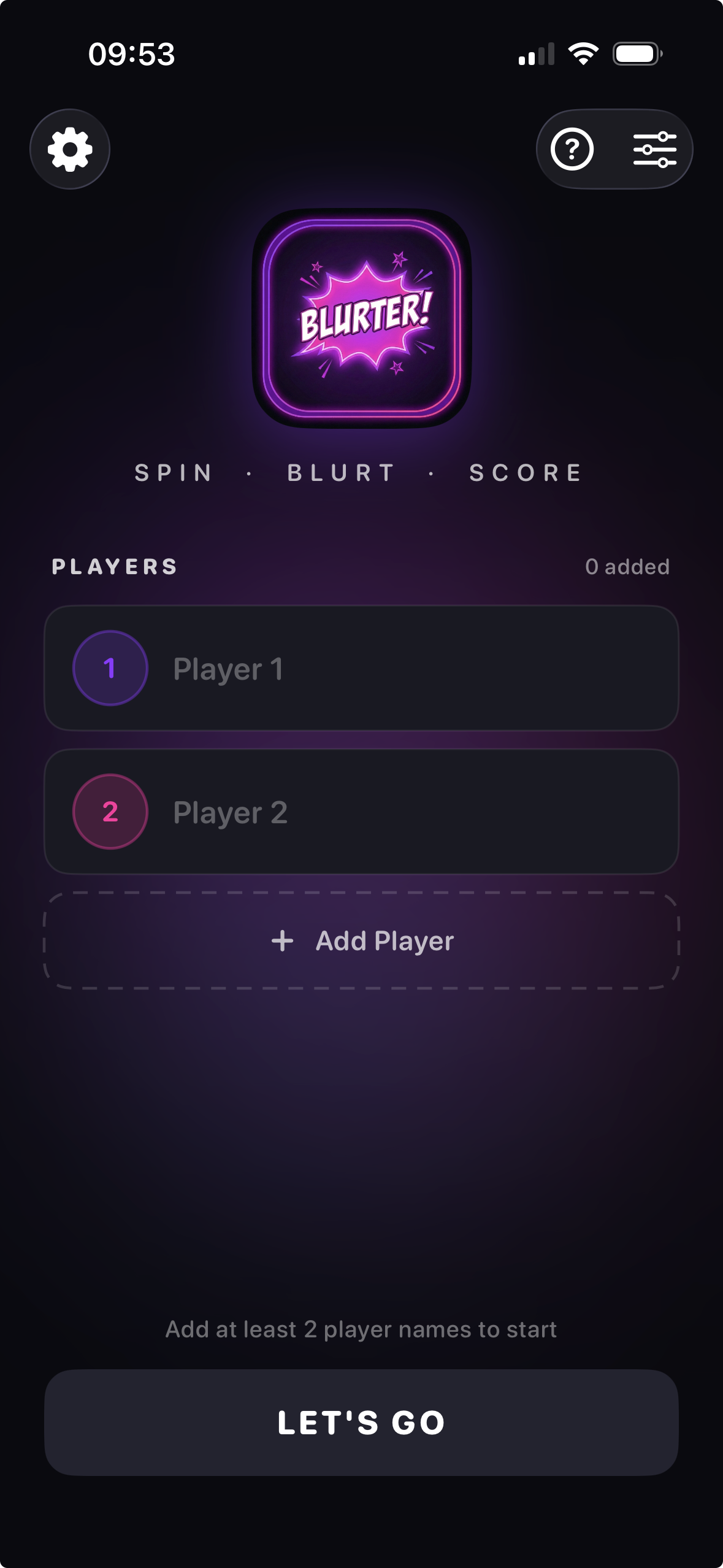
Player Selection Screen
This screen appears when you first open the app. Add players to start a game of Blurter!
- 1Tap the fields under 'Player 1' and 'Player 2' to enter each player's name for the game.
- 2Tap the 'Add Player' button to add more players to your game; the game supports 2-20 players.
- 3Once you've entered at least 2 player names, tap the 'Let's Go' button to begin the game.
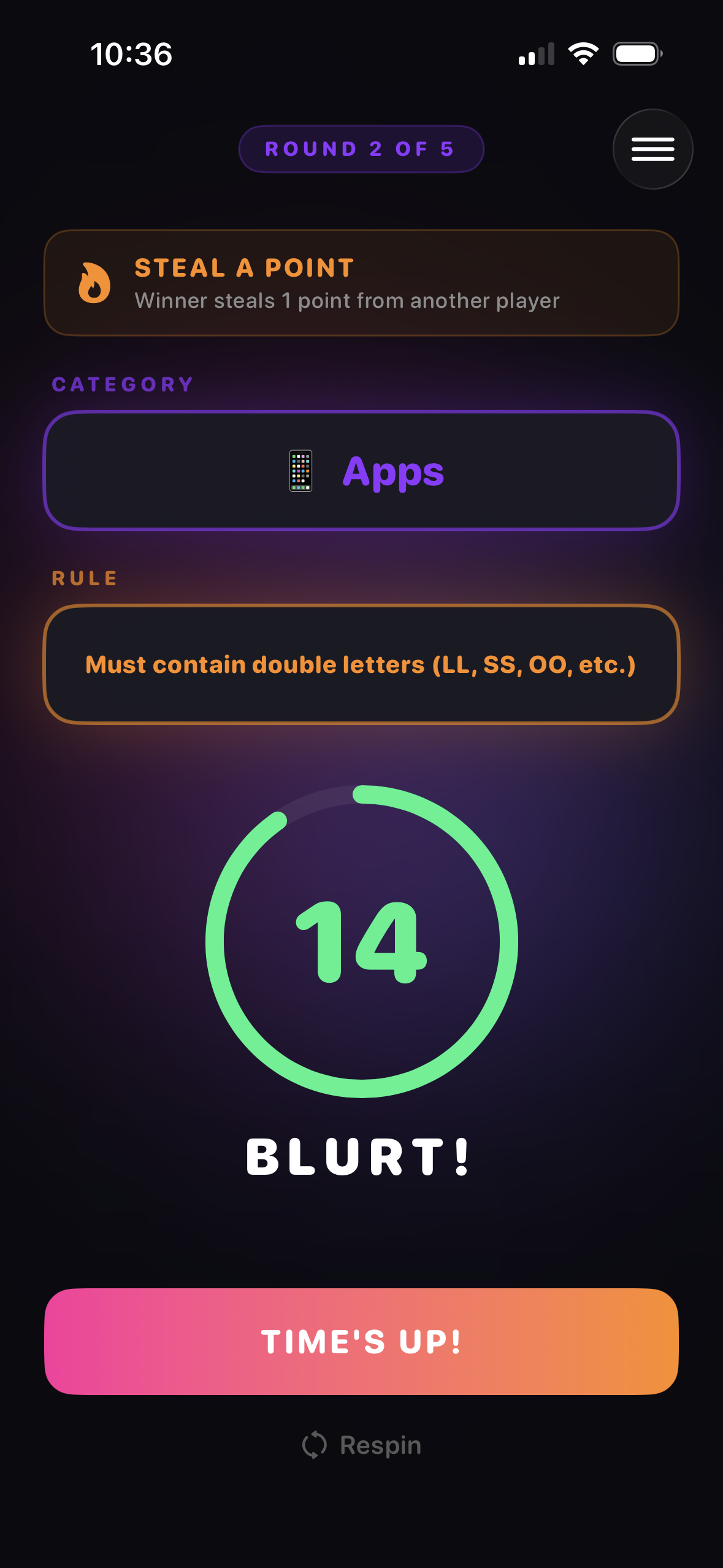
Round In Progress Screen
This screen appears during an active round of the game. It shows the current round, category, rule, and remaining time.
- 1View the current round number at the top of the screen to know how far along you are.
- 2The 'Category' section shows what category of answers you need to provide.
- 3The 'Rule' section shows the rule your answer must follow.
- 4The timer in the center indicates how much time remains in the round.
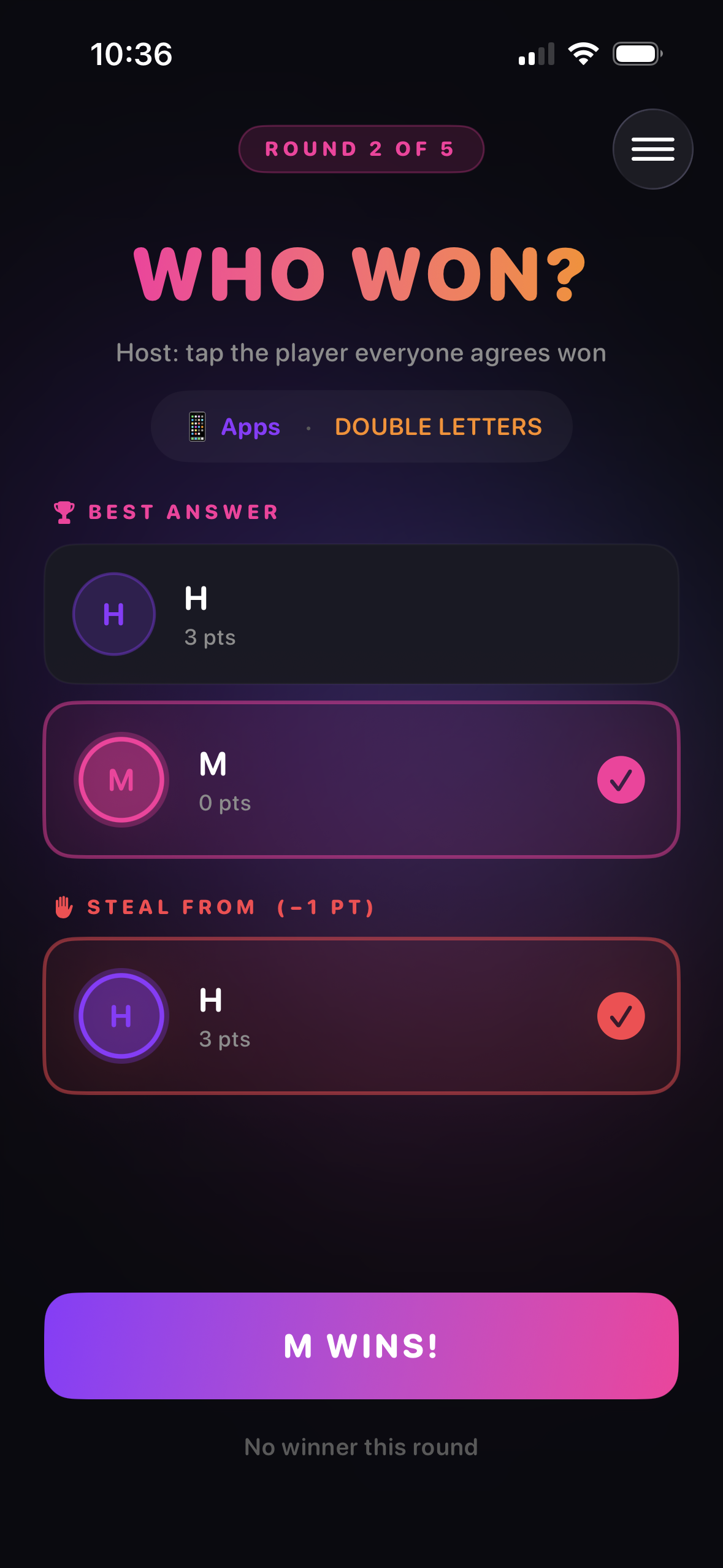
Judge Who Won Screen
This screen appears after the "Blurt!" round. The host uses this screen to pick the winner, by tapping on the player they think had the best answer.
- 1Tap either of the players to select them as the winner of the round.
- 2Players who had the "Best Answer" or "Steal From" cards have their points indicated on the screen.
- 3Tap the "Player Wins!" button to confirm your choice, or select the "No winner this round" text if the round was inconclusive.
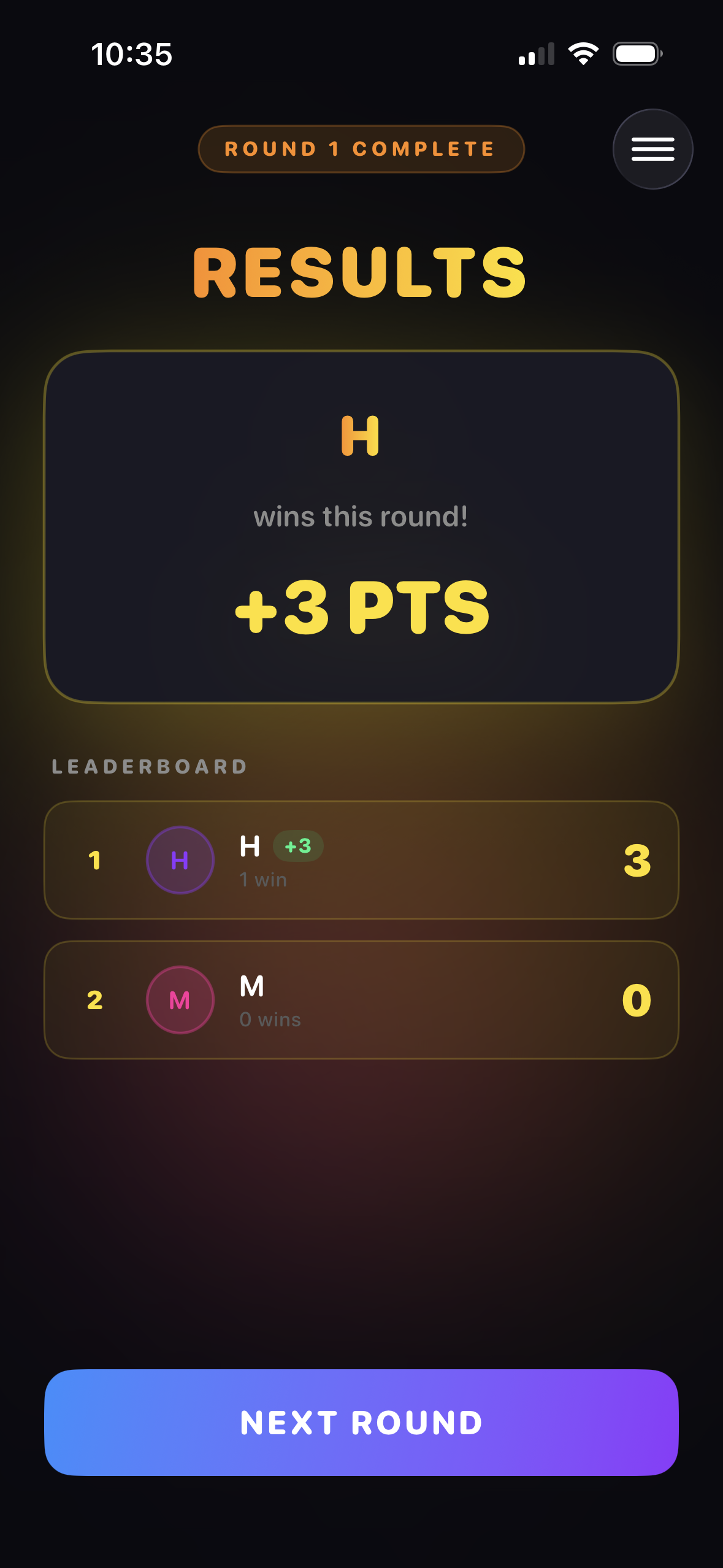
Round Results Screen
This screen appears after each round, showing who won and updating the leaderboard. It lets you know who is in the lead.
- 1The "Round 1 Complete" text lets you know that the results shown are for the round that just finished.
- 2The large text shows which player won the round and how many points they earned.
- 3The leaderboard shows each player's current score and how many wins they have.
- 4The "Next Round" button takes you to the next round of the game so you can continue playing.
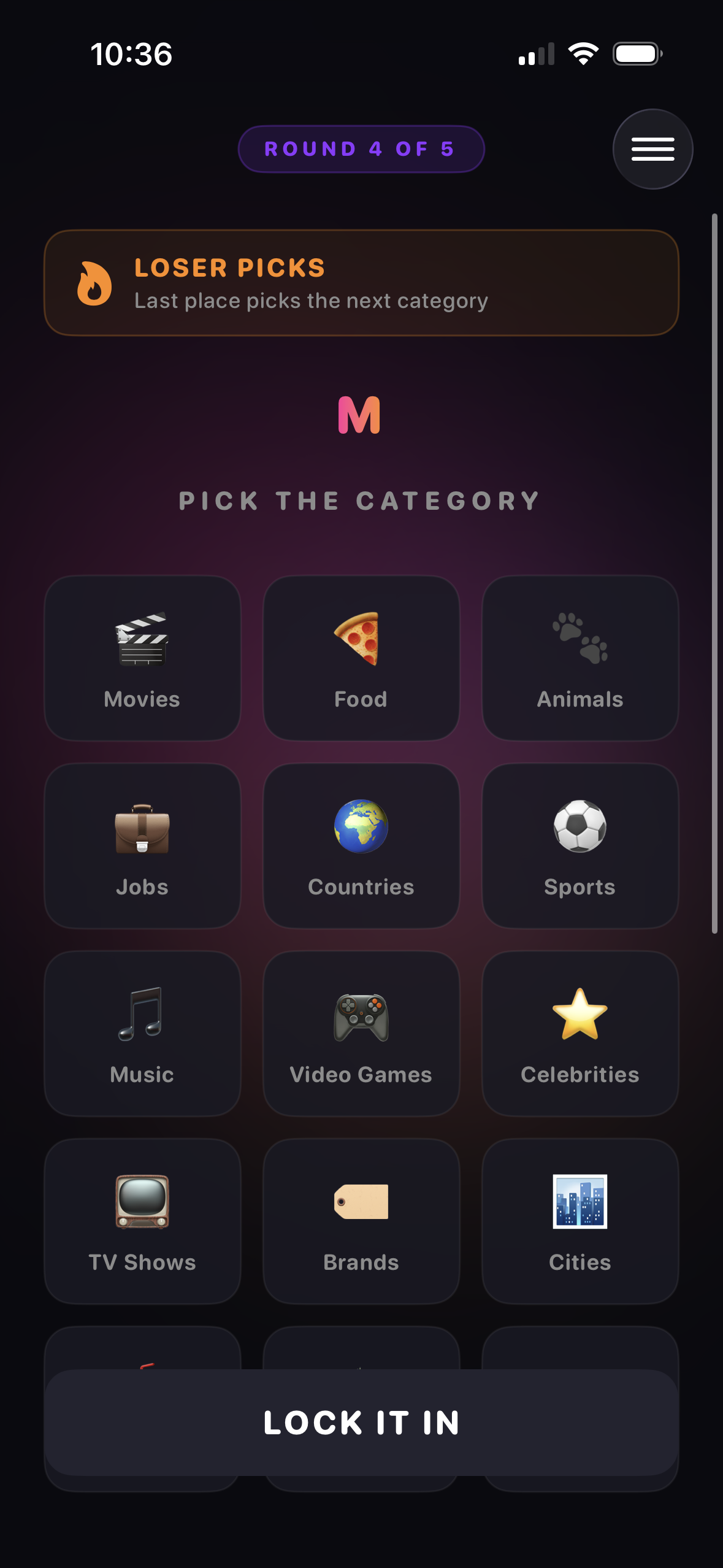
Category Selection Screen
This screen allows the loser of the previous round to pick the category for the next round. The person in last place gets to choose the category from the options displayed.
- 1Tap on any of the category icons (e.g., Movies, Food, Animals) to select it for the next round.
- 2Once you've chosen a category, tap the "LOCK IT IN" button to confirm your selection.
- 3The "LOSER PICKS" banner at the top reminds you that last place gets to make this choice.
- 4Note which round you are on at the very top of the screen.
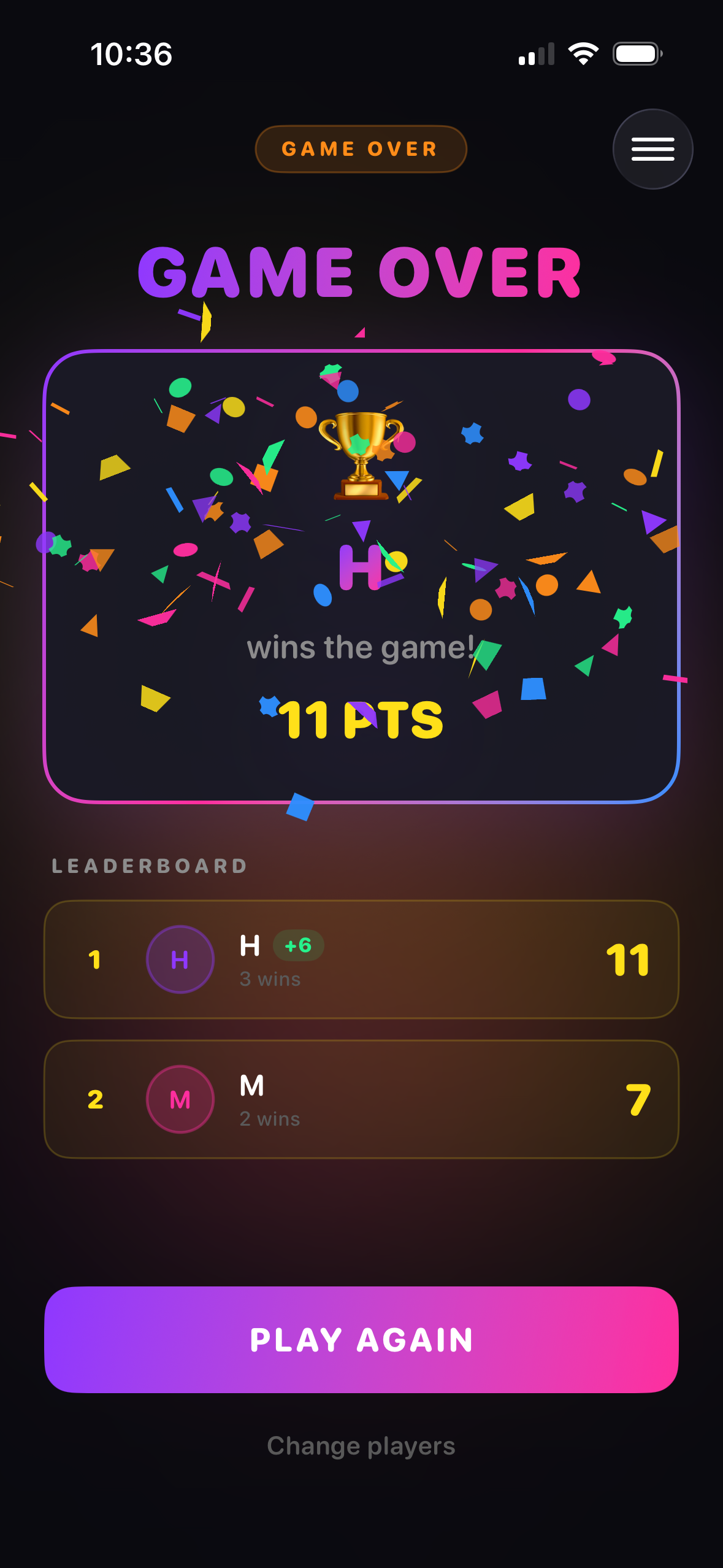
Game Over Screen
This screen is displayed after you have completed all the rounds in your game. You can view the leaderboard and choose to play again.
- 1Leaderboard: See a ranked list of all the players who played this game. It shows their position, name, and total points for the game.
- 2Play Again: Tap the Play Again button to start a new game with the same players and settings.
- 3Change Players: If you want to change players, tap the Change players to go back to the add players screen.
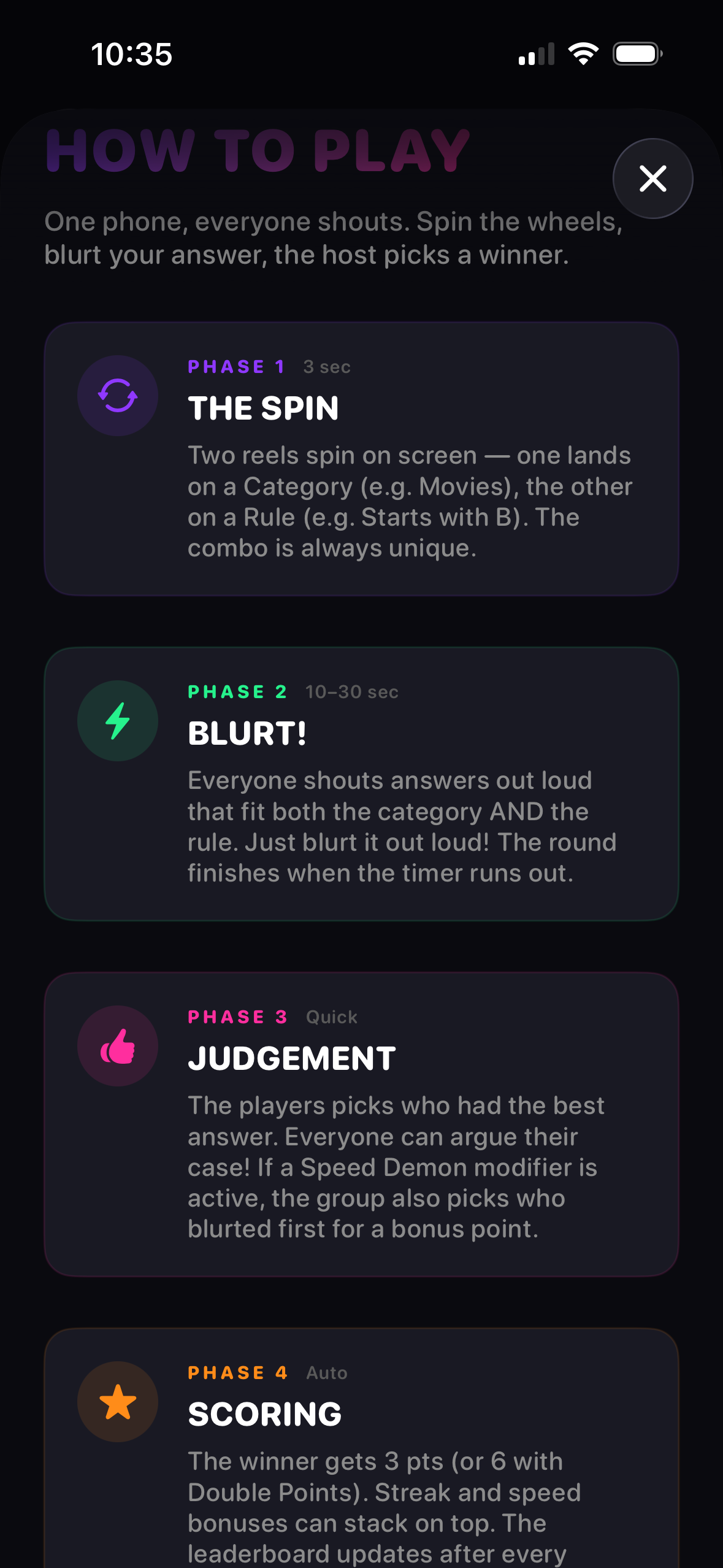
How To Play Guide
This screen explains the game's phases, which are The Spin, Blurt!, and Judgement. You will see this screen when you tap on the 'How to Play' button.
- 1In The Spin phase, two wheels spin to select a category and a rule.
- 2In the Blurt! phase, everyone shouts answers that match the category and the rule.
- 3In the Judgement phase, players pick the best answer, with a bonus point for the first blurt when the Speed Demon modifier is active.
- 4The Scoring phase is automatically handled by the app.
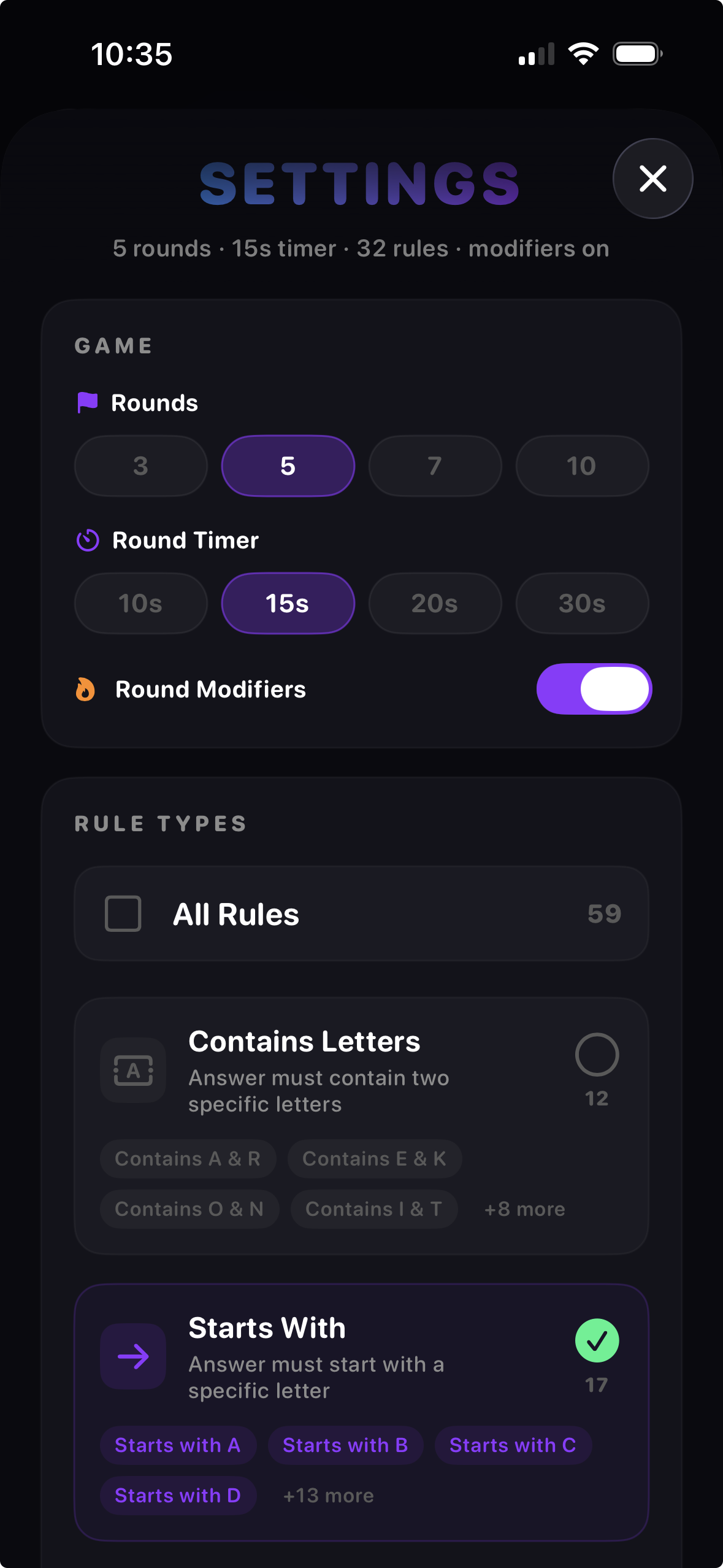
Settings Customization Screen
This screen allows you to customize gameplay options, such as the number of rounds, timer duration, and types of rules used during a game.
- 1Tap the 'Rounds' options to select between 3, 5, 7, or 10 rounds per game.
- 2Choose the 'Round Timer' duration by selecting between 10, 15, 20, or 30 seconds.
- 3Use the 'Round Modifiers' toggle to enable or disable game modifiers for a varied gameplay experience.
- 4Check the 'All Rules' box to include all 59 rule types in your game, or deselect to customize which rules are used.
- 5Select specific rules like 'Starts With' to limit answers to those that start with a specific letter.
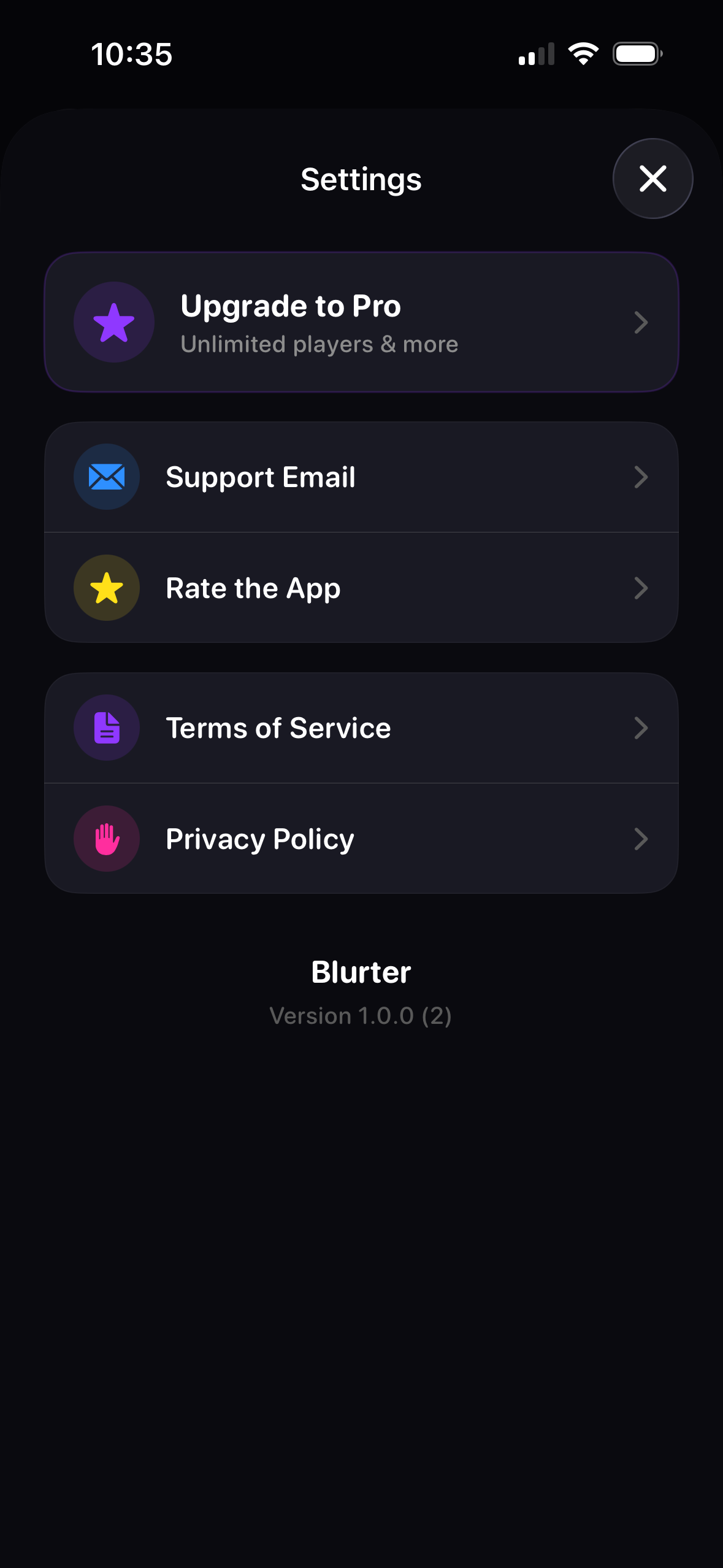
Settings and Preferences Screen
This screen allows you to manage your app experience, find support, and understand our policies. Access this screen from the main menu to adjust settings.
- 1Tap 'Upgrade to Pro' for unlimited players and more features.
- 2Tap 'Support Email' to contact the support team.
- 3Tap 'Rate the App' to leave a review.
- 4Tap 'Terms of Service' to read the legal agreement.
- 5Tap 'Privacy Policy' to read about data handling practices.